



Managing customer payments shouldn’t feel like a guessing game. If you process credit cards or bank transfers through your business, knowing how to access your payment dashboard quickly is essential.
Whether you need to review recent deposits, handle a customer refund, or check processing fees, a successful quickbooks merchant services login gives you full control over your payment processing account. This guide walks you through signing in, navigating your account, and resolving common access hurdles.
What Are QuickBooks Merchant Services?
QuickBooks Merchant Services—commonly powered by QuickBooks Payments—is the built-in payment processing system for Intuit products. It lets businesses accept credit cards, debit cards, and ACH transfers directly through invoices, online sales, or point-of-sale hardware.
Rather than juggling an outside payment gateway, businesses use this system to keep sales income and accounting records aligned. All processed transactions flow straight into your financial ecosystem, laying the groundwork for clean bookkeeping.
What Is the Merchant Service Center?
The Merchant Service Center is your dedicated web portal for managing everything related to your payment processing account. While you can view basic payment info inside QuickBooks, the center handles deep-dive administrative tasks.
Inside this dashboard, you can track daily deposits, view individual transaction statuses, manage recurring billing, and update your business banking details. It serves as the primary command center for your merchant payment account.
How to Complete the QuickBooks Merchant Services Login
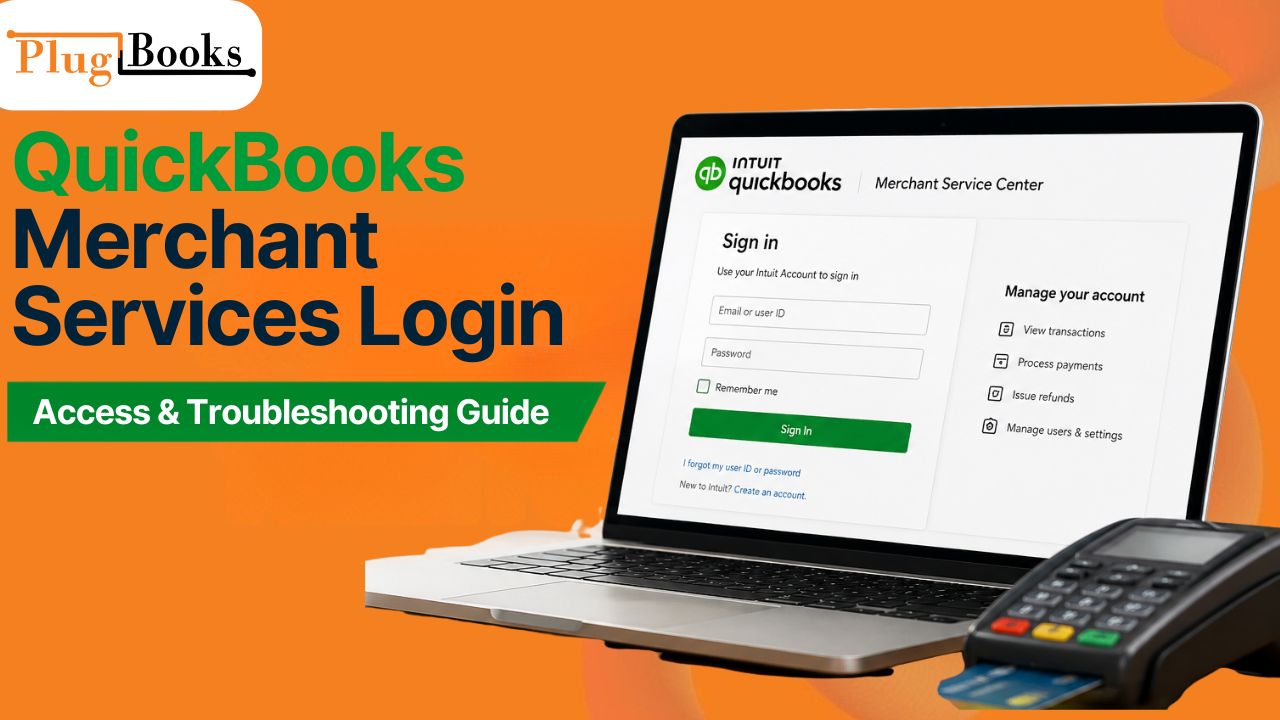
Signing into your payment portal takes just a few moments when you use your main Intuit credentials.
- Open your web browser and navigate to the official QuickBooks Merchant Service Center sign-in page.
- Choose the option to sign in using your standard Intuit User ID or email address.
- Enter your account password carefully.
- Complete any security verification prompts, such as entering a multi-factor authentication code sent via text or email.
- Click the final sign-in button to proceed directly to your payment dashboard.
Once authenticated, you will land on your payment activity home screen, where recent processing volume and batch totals are displayed immediately.
Accessing Merchant Services From QuickBooks
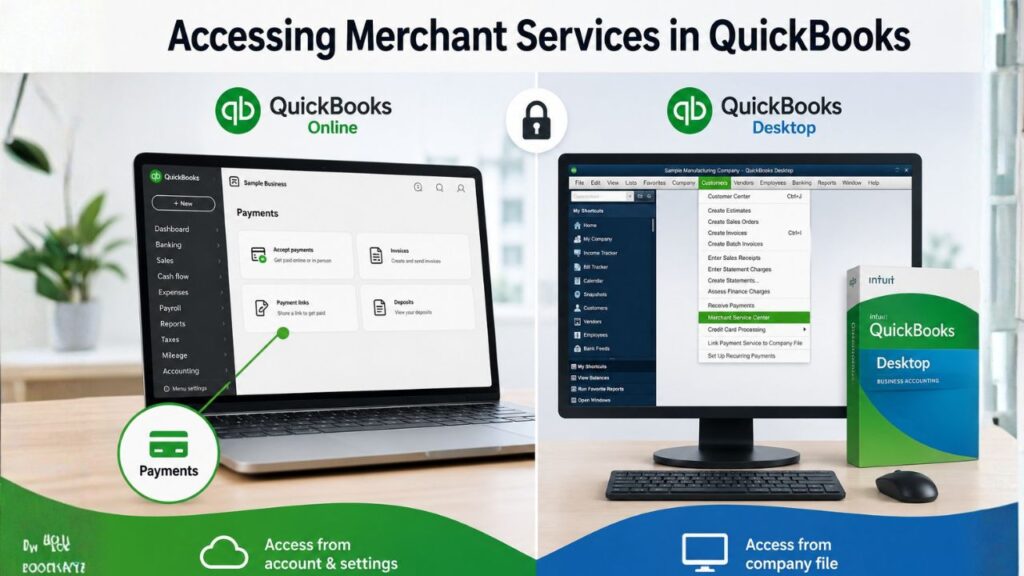
Depending on your software setup, you can access your merchant features directly from your workspace without typing a separate web address.
QuickBooks Online Access
If you use QuickBooks Online, your payment processing access is built right into the interface. Navigate to your account and settings area or look for the Payments section under your business profile. Because user interfaces receive regular updates, exact menu labels can vary, but your merchant account management links remain housed within your billing and subscription or sales settings.
QuickBooks Desktop Access
If you run QuickBooks Desktop, you can reach your payment tools straight from your company file. Open your software, go to the top navigation menu, and select the customer or vendor menu where payment processing is hosted. Clicking on your merchant account details or selecting options to manage payments will launch your browser and securely route you to your portal. Keep in mind that QuickBooks menus and labels may change based on your software year and product tier.
What Can You Do After Signing In?
A successful sign-in opens the door to complete merchant transaction management. Business owners use this dashboard to handle daily operational tasks:
- Review Transactions: Search for specific customer charges, check deposit statuses, and verify batch settlement times.
- Process Refunds and Voids: Issue money back to a client card or cancel an unsettled transaction before funds clear.
- Manage Account Settings: Update your deposit bank account, change business contact information, or adjust user permissions.
- Analyze Fees: Download monthly statements to review processing rates and fee breakdowns for accurate expense tracking.
How to Change Your QuickBooks Login Details
Keeping your credentials up to date safeguards your business funds. Because your merchant account shares credentials with your primary Intuit profile, you update everything in one central spot.
Navigate to your Intuit Account Manager or security settings page. From there, you can safely modify your registered email address, update your phone number for security codes, or reset your password. Always pick a strong, unique password to protect your merchant payment account from unauthorized access.
What to Do If QuickBooks Merchant Services Login Is Not Working
Running into a roadblock during sign-in can stall your workday. Here is how to handle common access issues safely:
- Incorrect User ID or Email: Ensure you are using the primary email tied to your original account setup rather than a secondary staff login.
- Forgotten Password: Use the built-in password recovery link on the sign-in screen to receive a secure reset code via email.
- Security Verification Delays: If multi-factor authentication codes are delayed, check your spam folder or choose an alternative verification method like a phone call.
- Browser or Cached-Session Issues: Clear your browser cache, disable aggressive ad-blockers, or try opening an incognito window.
- Account Not Connected: If your portal shows no data, your QuickBooks company file may need to be relinked to your active payments profile.
- Repeated Sign-In Prompts: This loop usually stems from blocked cookies or outdated browser data. Clear site cookies and try again.
If you encounter persistent technical glitches or account suspension notices, reach out directly through official QuickBooks support channels for verified assistance.
How to Connect an Existing QuickBooks Payments Account
If you recently set up a new company file or migrated software versions, you may need to link your existing payment profile. Navigate to the payment settings section within your QuickBooks product and select the option to connect an existing account. You will be prompted to enter your established merchant credentials to sync your processing profile with your current workspace, ensuring customer payments route to the correct ledger.
QuickBooks Merchant Services Login Security Tips
Protecting your payment gateway is vital for safeguarding business revenue. Follow these core security practices:
- Never share your Intuit credentials with unauthorized staff members; set up custom user roles instead.
- Enable multi-factor authentication on every login attempt.
- Avoid logging into your merchant dashboard on public, unsecured Wi-Fi networks.
- Regularly review your active connected apps and authorized browser sessions.
Streamlining Your Accounting After Payment Data Arrives
Once your customer payments are successfully processed and recorded in your system, the next challenge begins: bookkeeping reconciliation. Keeping sales receipts, marketplace payouts, and processing fees aligned can consume hours of manual work.
This is where accounting automation makes a difference. Tools like PlugBooks help businesses sync and organize ecommerce transaction data seamlessly. Rather than acting as a login tool, PlugBooks steps in after your data enters the accounting workflow, helping you automate reconciliations and keep your financial records clean.
Curious about optimizing your post-payment workflow? Explore how PlugBooks can simplify your ecommerce bookkeeping after your payment data reaches your accounting system.

Frequently Asked Questions
What should I do if my QuickBooks Payments account is temporarily locked?
Account lockouts usually happen after multiple failed sign-in attempts. Wait roughly 15 to 30 minutes for the security block to lift automatically, or use the official password recovery tool to verify your identity and restore access immediately.
Can I have multiple users access the Merchant Service Center?
Yes, you can invite additional team members or accountants by setting up user permissions within your main Intuit account settings. This allows staff to view reports or process transactions without sharing your master login credentials.
How do I update my bank account for customer deposits?
Log into the Merchant Service Center, navigate to your account or profile settings menu, and locate the bank deposit section. From there, you can securely submit your new routing and account numbers for future payouts.
Why are my recent credit card transactions missing from the dashboard?
Missing transactions usually indicate a filter date mismatch or a delayed batch settlement. Check your date range filters in the transaction search tab, and remember that weekend or holiday transactions may take an extra business day to settle.
Where can I find my monthly processing fee statements?
Monthly statements live directly inside your Merchant Service Center dashboard. Look for the statements or reports tab, where Intuit archives downloadable PDF summaries of all processing fees and transaction volumes for tax and bookkeeping purposes.
Is my merchant account login the same as my standard QuickBooks sign-in?
Yes, Intuit uses a unified single sign-on system. The email address and password you use to open your QuickBooks software or online ledger are the exact same credentials required for your payment portal access.
