



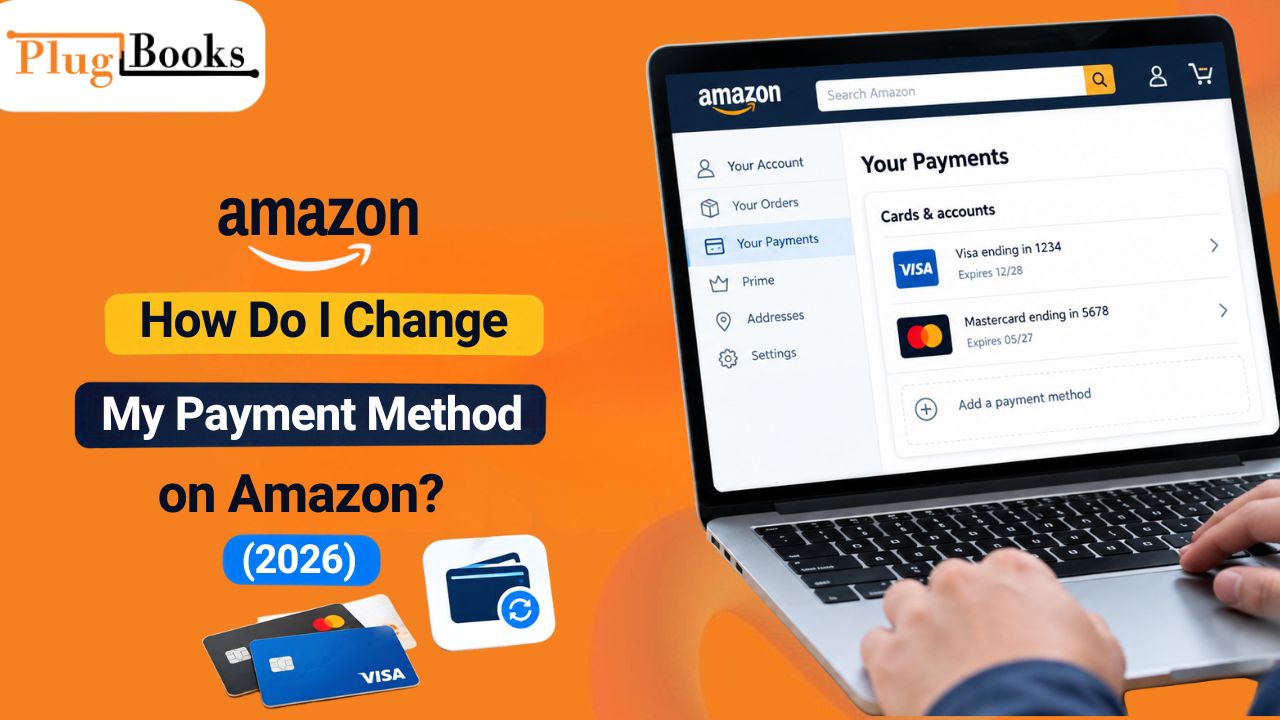
If you are searching for how do I change my payment method on Amazon, you can usually update your saved payment details through the Your Payments section of your Amazon account. If you have already placed an order, you may need to change its payment method separately.
Whether you need to replace an expired card, update your billing address, resolve a declined payment, or understand an Amazon transaction, the correct steps depend on the type of payment involved.
This guide explains how to manage Amazon payment methods, troubleshoot common order payment problems, and understand payment records as an Amazon seller.
How Do I Change My Payment Method on Amazon? Easy Steps
To change a saved payment method, follow these steps:
- Sign in to your Amazon account.
- Open Account & Lists and select Your Account.
- Choose Your Payments.
- Select the credit or debit card you want to update.
- Choose the available edit option to update your card details or billing address.
- Review your information and save the changes.
If you are still wondering how do i change my payment method on amazon, check that your updated card details and billing address are correct before saving your changes.
If your card has expired or your bank has issued a replacement with a different number, you may need to add the new card and remove the old one.
Amazon’s available options can vary by payment method and account. Follow the instructions displayed on your account to complete the update.
Important: Updating a saved payment method does not automatically change the payment method on an existing order. You may need to update that order separately.
How to Change Your Amazon Payment Method on Different Devices
You can update your Amazon payment method using an iPhone, Android phone, laptop, or desktop computer.
The process for how do i change my payment method on amazon is similar across devices, although menu labels may vary between the mobile app and desktop website.
- iPhone: Open the Amazon Shopping app, go to your account, select Your Payments, and choose the card you want to update.
- Android: Open the Amazon app, navigate to Your Payments, and edit the relevant payment method.
- Laptop or desktop: Sign in to Amazon.com, go to Account & Lists → Your Account → Your Payments, and select the payment method you want to change.
If you need to change the payment method for an existing order, open Your Orders and check whether the payment-change option is available. Menu labels and options may vary by device and order status.
How to Add a New Payment Method to Amazon
If you want to use another card for future purchases, you can add it to your Amazon account.
- Open Your Payments.
- Select Add a payment method.
- Choose an available payment method.
- Enter the requested payment details.
- Follow any verification instructions and save the method.
You may also be able to add a payment method during checkout.
Before saving, check that your card number, expiration date, and billing address are correct. Your bank may require additional verification before authorizing a transaction.
Adding a card does not necessarily make it your default payment method. Review your payment settings if you want to change the card Amazon selects for eligible purchases.
How to Change Your Default Amazon Payment Method
Your default payment preference helps Amazon select a payment method for eligible purchases when that preference applies.
To review or change it:
- Sign in to your Amazon account.
- Go to Your Payments.
- Select the relevant payment method or payment preference.
- Look for the default payment option available to your account.
- Select your preferred method and save the changes.
The exact labels and options may vary by account and payment method.
If you use Amazon for recurring subscriptions or digital services, review those billing settings separately. Changing your general payment preference may not update every existing subscription or pending transaction.
How to Change the Payment Method for an Existing Amazon Order
If you have already placed an order, changing your saved card alone may not update the payment method for that purchase.
If your order has already been placed, how do i change my payment method on amazon depends on whether Amazon still allows payment updates for that order.
Follow these steps:
- Open Your Orders.
- Find the order you want to update.
- Open its order details.
- Look for the Change Payment Method or the relevant payment-change option.
- Select another eligible payment method if available.
- Follow the on-screen instructions to confirm the change.
Amazon may allow payment changes for eligible orders that have not yet entered the shipping process. Availability depends on the order’s status and the options Amazon displays.
If you cannot change the payment method, check the order status and available actions. Depending on the circumstances, you may need to contact Amazon Customer Service or cancel and place a new order.
Why Does My Amazon Order Say Payment Revision Needed?
If you are wondering, why does my Amazon order say payment revision needed, it generally means Amazon could not successfully process the payment method associated with the order.
Common reasons include:
- Expired card: The card’s expiration date has passed.
- Incorrect billing information: The card details or billing address may not match the information held by your bank.
- Insufficient available funds or credit: The payment cannot be authorized for the required amount.
- Bank security checks: Your bank may have declined the transaction or requested verification.
- Payment restrictions: Your card issuer may restrict certain online or international transactions.
This message does not necessarily mean your Amazon account has been permanently restricted.
How to Fix an Amazon Payment Revision Error
- Open Your Orders.
- Find the affected order.
- Select Retry Payment Method, Change Payment Method, or the relevant option shown.
- Check your card details and billing address.
- Choose another eligible payment method if necessary.
- Follow the instructions to submit the payment again.
- Check your order status for confirmation.
If the payment continues to fail, contact your bank or card issuer to ask why the transaction was declined. Amazon may cancel an order if the payment problem remains unresolved, so review any notices or deadlines shown in your account.
What Does My Amazon Payment Mean?
The phrase my amazon payment can refer to different payment activities, depending on what you are trying to check.
For buyers, it may mean reviewing a saved card, checking an order charge, or resolving a declined transaction. For sellers, it may refer to money received from Amazon, settlement activity, selling fees, refunds, or other account adjustments.
If you searched for my payments amazon, start with the section that matches your situation:
- Saved shopping cards: Open Your Payments.
- Order charges and payment problems: Open Your Orders.
- Amazon Pay transactions: Review your Amazon Pay activity.
- Seller settlements and payouts: Open the Payments area in Seller Central.
These sections serve different purposes. Identifying the correct one helps you find the information you need without confusing a shopping payment with a seller payout.
How to Find the Right Amazon Payment Settings
If you searched for payments amazon, the right destination depends on the transaction or account setting you want to manage.
| Your goal | Where to start |
| Add, edit, or remove a saved card | Your Payments |
| Change the payment method for an eligible order | Your Orders |
| Resolve a declined order payment | Your Orders |
| Review Amazon Pay transactions | Amazon Pay activity |
| Update recurring service billing | Relevant membership or subscription settings |
| Review seller settlements and payouts | Seller Central Payments |
Always verify the relevant order or transaction before making changes. This is particularly important if you have multiple cards, subscriptions, or orders in progress.
How Amazon Sellers Can Track Payments and Profit
Amazon sellers use payment reports to understand how sales, refunds, selling fees, and other adjustments affect the money they receive. However, a payout deposited into a bank account does not automatically represent the business’s actual profit.
To understand profitability, sellers also need to account for expenses and the cost of goods sold (COGS). Comparing Amazon settlement records with bank deposits and bookkeeping entries can help identify discrepancies and maintain more accurate financial records.
Why Amazon Sellers Need Payment Reconciliation
Payment reconciliation helps sellers compare the amounts recorded by Amazon with the deposits received in their bank accounts. It also helps them investigate differences caused by fees, refunds, reserves, adjustments, or timing differences.
A practical workflow includes:
- Reviewing Amazon settlement and transaction reports.
- Identifying sales, refunds, fees, and other adjustments.
- Matching the relevant settlement amounts with bank deposits.
- Recording business expenses and COGS separately.
- Investigating discrepancies before finalizing bookkeeping records.
Keeping these records organized makes it easier to review financial performance and prepare information for tax reporting.
How PlugBooks Helps Amazon Sellers Manage Bookkeeping
PlugBooks helps ecommerce sellers organize Amazon sales, refunds, fees, taxes, settlements, and expenses for bookkeeping. It also supports COGS tracking and works with QuickBooks and Xero.
Instead of treating every Amazon payout as profit, sellers can organize their transaction records alongside business costs to develop a clearer picture of financial performance.
For sellers who manage multiple sales channels, keeping bookkeeping records organized can also make it easier to review transactions and prepare financial information for their bookkeeper or tax professional.

Frequently Asked Questions
1. How do I change my payment method on Amazon using the app?
Open the Amazon app, sign in, and navigate to your account’s payment settings. Select Your Payments, choose the relevant payment method, and follow the available instructions. Menu labels may vary by app version.
2. Can I change my Amazon payment method after placing an order?
Sometimes. Open Your Orders and check whether the order has a payment-change option. Availability depends on the order’s status and Amazon’s restrictions for that purchase.
3. Why can’t I remove a card from my Amazon account?
The card may be associated with a default payment preference, an existing order, or a recurring service. Review those settings and update any relevant payment details before trying again.
4. What should I do if Amazon keeps declining my card?
Check the card details, billing address, and available funds or credit. If the problem continues, contact your bank or card issuer to identify the reason for the decline.
5. Does changing my default card update existing orders?
No, not necessarily. Changing your saved or default payment method does not automatically update every open order. Review each relevant order and change its payment method separately when the option is available.
6. Where can Amazon sellers check their payment history?
Amazon sellers can review the Payments area in Seller Central and access the available transaction and settlement reports. These records help sellers understand payouts, fees, refunds, and adjustments.
Final Thoughts
Changing an Amazon payment method is usually straightforward once you identify whether you need to update a saved card, modify an eligible order, or resolve a declined transaction. Review the relevant account section, verify your details, and follow the options available for your purchase.
For sellers, the process extends beyond receiving a payout. Reviewing settlement reports, reconciling bank deposits, and recording expenses and COGS are important steps in understanding business profitability.
With organized transaction records and consistent bookkeeping, Amazon sellers can make better-informed decisions about their business finances.
