




Getting paid fast and without any hassle is a huge deal for pretty much any business. Whether you’re running a brick-and-mortar storefront, heading out to service calls, setting up shop at a weekend event, or selling on the move, Intuit GoPayment gives businesses a flexible way to handle customer payments wherever they operate. Having a payment setup that bends with your schedule makes taking money from customers a whole lot smoother.
This mobile payment solution, frequently associated with QuickBooks, is built to help you accept customer payments using the methods that work best for them, all backed by QuickBooks Payments. Depending on how you configure everything, you can accept regular card swipes, contactless tap-and-go options, cash, paper checks, and other convenient payment methods.
This complete guide walks you through how the GoPayment app works, how you can process credit card payments, and how the Intuit Merchant Service Center fits neatly into your day-to-day payment management.
What Is Intuit GoPayment?
Intuit GoPayment is a mobile payment tool straight from QuickBooks that lets you collect payments when you’re nowhere near a fixed checkout counter. It acts like a pocket-sized POS system, making life easier for anyone who needs the freedom to accept customer payments out in the wild.
As a quick example, businesses lean on GoPayment in spots like:
- Retail stores
- Direct customer homes and offices
- Pop-up shops
- Festivals, events, and trade shows
- On-site service appointments
- Fully mobile businesses
You just fire up the QuickBooks GoPayment app alongside supported payment methods and a compatible card reader. Depending on your specific account setup, you can even log cash and check payments right alongside the digital stuff.
What Are the Key Features of This Mobile Payment Solution?
Intuit GoPayment is built to take the headache out of collecting money when you need a mobile setup that actually keeps up. Its features are designed to help you take payments, manage your daily transactions, and keep your overall payment workflow tied smoothly into compatible QuickBooks services.
Next-Business-Day Deposits
If your business meets the criteria, you can watch processed funds land in your bank account as fast as the very next business day. Keep in mind that deposit speeds can change depending on your exact payment method, account type, and processing requirements.
Pay Per Transaction
Instead of locking you into a traditional, pricey monthly subscription just to take card payments, GoPayment offers a flexible model where you only pay processing fees based on the actual transactions you run. Real-time pricing and fees can vary depending on your account type and payment choices.
Mobile Card Reader
You can hook up a compatible mobile card reader to accept card payments by sliding, inserting, or tapping. This makes GoPayment a lifesaver for businesses that find themselves taking payments across a bunch of different locations.
QuickBooks Integration
For matching setups, GoPayment links directly with QuickBooks to automatically save your payment and sales info. That means way less tedious data entry for you and a much cleaner way to keep your transaction history organized.
Manual Card Entry
If you happen to find yourself without a card reader nearby, supported GoPayment setups let you type in card info by hand so you can still push an eligible payment through.
Products, Services, Taxes, and Tips
By linking with compatible QuickBooks setups, you can pull in your existing product and service catalogs, sales tax configurations, and customer tipping preferences. This keeps mobile checkout snappy and saves you from having to set up the exact same information all over again.
Contactless Payments With SoftPOS
With built-in SoftPOS capabilities, you can accept contactless payments straight through your compatible mobile devices. It gives you another great way to offer tap-to-pay options without being forced to carry around a separate hardware terminal.
How Does QuickBooks GoPayment Work?
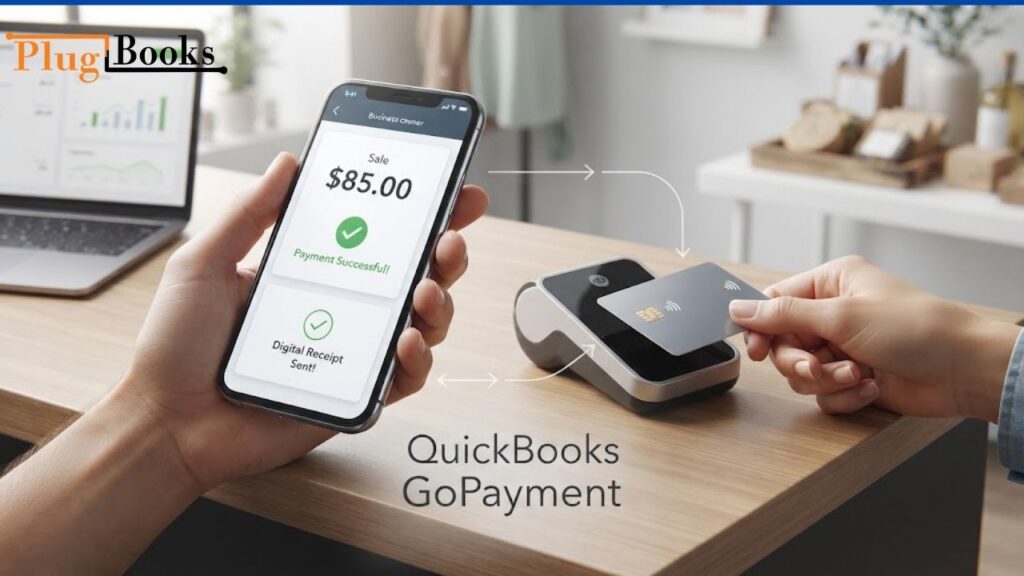
QuickBooks GoPayment lets you type in a sale amount, pick a payment method, and let the customer wrap up the transaction however they prefer.
A normal transaction flow looks pretty simple:
- Fire up the QuickBooks GoPayment app on your device.
- Punch in the total sale price or pick out specific products and services from your list.
- Do a quick double-check of the transaction details with your customer.
- Pick out the payment method they want to use.
- Process the payment.
- Shoot over a digital receipt via email or text message.
You can use a compatible QuickBooks card reader for standard chips and contactless taps. If needed, you can also type transactions in manually or use alternative payment options.
What Payment Methods Does This Payment Solution Support?
The payment methods open to you can change based on your specific business account, the device you’re holding, your location, and how your QuickBooks Payments setup is configured. Current QuickBooks documentation shows support for a wide variety of payment choices, including:
- Credit cards
- Debit cards
- Contactless payments
- Digital wallets
- Cash
- Checks
Compatible card readers handle chip and tap formats effortlessly, while digital wallet options typically include popular services like Apple Pay and Google Pay wherever they’re supported.
How Does Intuit Process Credit Card Payments?
If you’re hunting for a solid Intuit credit card payment setup, QuickBooks Payments lets you take supported credit and debit cards with zero fuss. Depending on how you configure things, you can clear payments using a compatible card reader or type the details in by hand if your setup allows it.
The actual workflow is straightforward:
Customer provides payment $\rightarrow$ Business processes the transaction $\rightarrow$ Payment activity is recorded through the applicable QuickBooks workflow.
Processing rules and fees can shift around, so it’s always smart to double-check the latest QuickBooks Payments details before locking in a payment option. It makes collecting money a breeze for businesses that are constantly taking in-person payments.
Can Businesses Accept Contactless Payments?
Yes, absolutely. Supported QuickBooks payment configurations let you accept contactless payments using either compatible card readers or eligible mobile devices. This gives everyday retailers, mobile operators, and service professionals an effortless way to offer tap-to-pay at a moment’s notice.
The exact contactless features you get will depend on your hardware device, account type, and overall payment setup.
Who Can Use Intuit GoPayment?
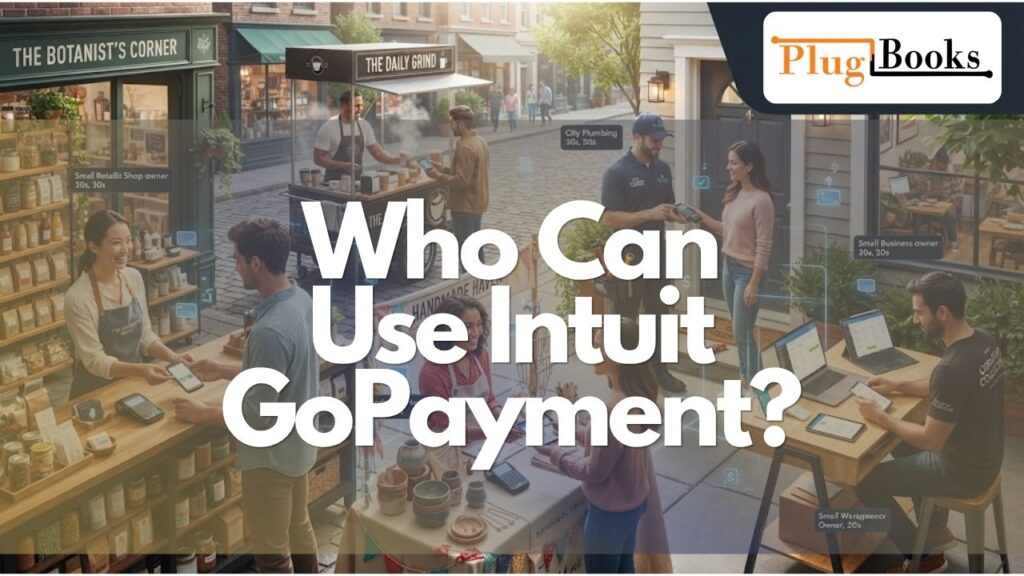
Intuit GoPayment isn’t just locked down for online storefronts—it’s built to help a wide range of brick-and-mortar and field-based businesses accept payments seamlessly on the go.
Retail Businesses
Retailers can whip out mobile payment tools whenever they need extra flexibility beyond a fixed, stationary checkout counter.
Service Providers
Field professionals who travel directly to customer locations can collect payment immediately after finishing a job.
Mobile Businesses
Food trucks, delivery operations, and independent service providers who operate across changing locations love having portable payment options on hand.
Event and Pop-Up Businesses
Merchants selling physical goods or services at temporary venues can easily process customer checkouts right on the spot.
Small Businesses
Small business owners looking for a clean, straightforward way to take in-person payments will find GoPayment fits right into their workflow.
How Does the QuickBooks Card Reader Work With GoPayment?
A compatible QuickBooks card reader links directly with the GoPayment app, giving you a physical, tangible way to process card and contactless transactions. It’s a must-have for anyone who takes face-to-face payments regularly and wants to skip typing in long card numbers by hand.
Available capabilities can change depending on your reader model, device type, and payment setup, so it’s always smart to check device compatibility before buying a reader.
What Is Intuit Merchant Service Login?
The Merchant Service Center is the command hub used to manage specific QuickBooks Payments account features. Depending on your account type and setup, you can log in here to review payment data, track deposits, and handle core account settings. Official QuickBooks documentation also lays out step-by-step instructions for tasks like managing employee users, ordering extra card readers, and reviewing GoPayment sales stats.
You should always make sure you’re using the official Intuit or QuickBooks sign-in portals whenever you log into your payment accounts.
What Can Businesses Manage Through Merchant Services?
The exact features you see can change depending on your specific QuickBooks product and payment account tier. Even so, logging into the Merchant Service Center gives you control over critical tasks such as:
- Payment account information and settings
- Employee users and security permissions
- Card reader and hardware orders
- General payment activity tracking
- Specific sales records and logs
For businesses with multiple staff members out in the field, setting up proper user access and permissions is a great way to control who gets to touch payment-related features.
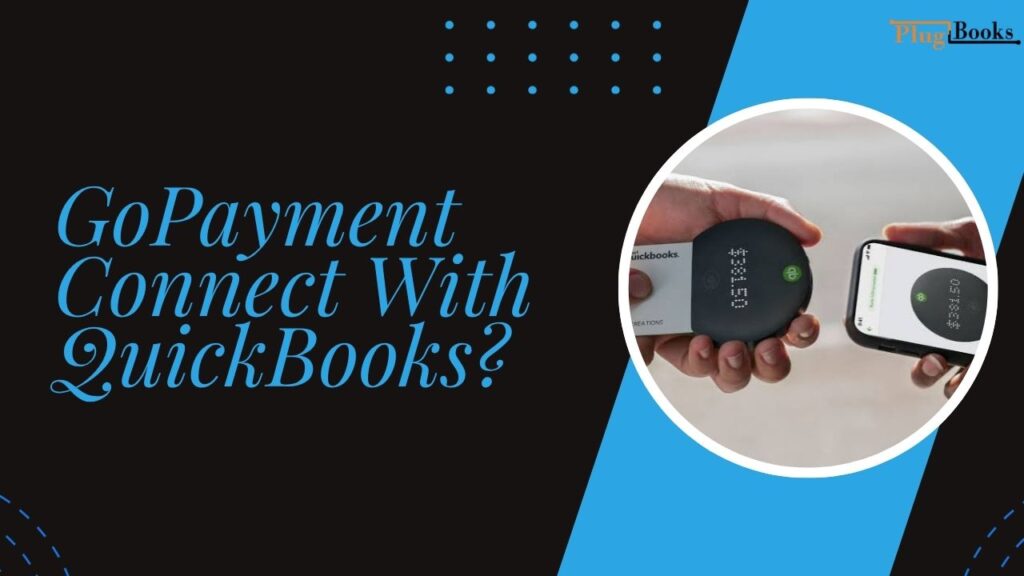
How Does GoPayment Connect With QuickBooks?
The way GoPayment links up with QuickBooks can vary depending on your particular QuickBooks product version, account tier, and overall payment setup. It’s a good idea to inspect your specific configuration so you understand how your sales data and payment histories are recorded and synced.
What Happens After a Business Accepts a Payment?
Taking a customer’s money is really only half the battle when you’re managing business finances.
Once a payment clears, you still have to clean up and organize a mountain of tracking data, such as:
- Total sales
- Customer refunds
- Payment processing fees
- Sales taxes
- Bank deposits
- Standard bank transactions
- Outstanding customer invoices
Keeping this information neat and tidy makes your regular bookkeeping and financial reporting infinitely easier down the line.
For a tiny business running on just a single payment channel, this workflow is usually pretty manageable. But if you’re selling across multiple channels, things can get complicated fast.
Why Multi-Channel Businesses Need Organized Bookkeeping
You might be taking in-person payments with GoPayment on the weekends while simultaneously selling goods online through platforms like:
- Amazon
- Shopify
- eBay
- Other popular ecommerce channels
Every single channel generates its own distinct web of financial activity, from day-to-day sales and refunds to platform fees, taxes, and final payouts.
Manually copying and pasting information from half a dozen different dashboards eats up valuable hours and dramatically raises the risk of costly bookkeeping mistakes. Businesses selling across multiple avenues benefit heavily from an organized workflow that automatically routes ecommerce financial data right into their accounting software.
How PlugBooks Helps Ecommerce Businesses
While Intuit GoPayment is built strictly to help you get paid, PlugBooks is engineered specifically to help ecommerce businesses simplify and automate their bookkeeping workflows.
For merchants selling across multiple online sales channels, PlugBooks helps organize financial data for your accounting software by cutting out the need to manually track every single transaction line by line.
This comes in especially clutch when you need to keep tabs on:
- Ecommerce sales across multiple platforms
- Marketplace and platform fees
- Customer refunds and returns
- Sales taxes collected
- Payout deposits
- Clean accounting records
The fundamental difference is pretty simple:
Payment tools help businesses get paid.
Ecommerce bookkeeping tools help businesses organize the financial activity generated by those sales.
Businesses operating both online and offline often find they need specialized tools for different parts of their financial pipeline.
Is GoPayment a Good Fit for Your Business?
Intuit GoPayment is definitely worth serious consideration if your business regularly collects customer payments in person or requires a truly mobile checkout option.
It shines brightest for businesses that crave flexibility and need to take payments across varying locations without missing a beat.
However, you also need to think about what happens after the customer swipes their card.
If you’re running a multi-channel ecommerce operation, taking payments is only one phase of your financial workflow. You’ll also want a dependable system to corral sales, refunds, marketplace fees, taxes, and payouts cleanly into your accounting books.
Final Thoughts
Intuit GoPayment—also known as QuickBooks GoPayment—gives businesses a dependable, mobile way to accept customer payments anywhere life takes them. It supports a wide variety of business styles, from local retailers and independent service pros to mobile operations and event companies.
You can also lean on QuickBooks Payments and the Merchant Service Center to manage the administrative side of your payment workflow.
Even so, getting paid is just the starting line. As your business scales up—especially across multiple online and offline channels—keeping your financial data neatly organized becomes more important than ever.
For growing ecommerce businesses selling across multiple platforms, keeping sales, fees, refunds, taxes, and payouts unified makes the entire bookkeeping process a walk in the park.

FAQs
1. What is GoPayment used for?
GoPayment is used to collect in-person payments through a mobile device and is useful for merchants, service providers, pop-up enterprises, and other companies who need portable payment processing.
2. Does GoPayment take credit or debit cards?
Yes, suitable configurations support credit and debit cards either a card reader or an eligible manual-entry option. Available payment methods depend on the payment account and device used.
3. Does GoPayment tap to pay transactions?
Yes, contactless transactions can be accepted by using compatible card readers or qualifying mobile devices with supported configurations. Accepted as indicated. Contactless cards and digital wallets are supported.
4. When do I get my money from GoPayment?
Eligible firms will have access to the monies processed as soon as the next working day. Actual deposit times can vary by account, transaction type, bank and processing requirements.
5. Can I use GoPayment as a small business without a traditional point of sale?
Yes. Eligible businesses can use its mobile payment feature to accept payments away from a permanent register, making it a good fit for mobile services, events, customer visits and temporary sites.
6. How do I record GoPayment transactions in QuickBooks?
Compatible payment and accounting configurations can capture or sync transaction details with QuickBooks. The specific process varies based on the QuickBooks software, account type, and payment setup.
7. What’s the difference between GoPayment and a card reader?
GoPayment is the mobile payment app and service, while a card reader is the hardware that captures supported card transactions. Together they can offer a portable checkout solution.
8. Can I use GoPayment for ecommerce?
It can be useful for ecommerce enterprises that also take payments in person. But online sellers may require extra tools to organise marketplace sales, fees, refunds, taxes and payouts across several sales channels.