




Have you ever felt overwhelmed trying to manage your eBay activity? Whether you’re a casual buyer, seasoned seller, or just starting your online business, eBay offers a feature-packed tool to simplify your experience: My eBay Summary.
This central dashboard is a game-changer for tracking orders, managing listings, and staying on top of your sales performance. In this guide, we’ll dive into the details to help you make the most of it.
How Does My eBay Summary Work?
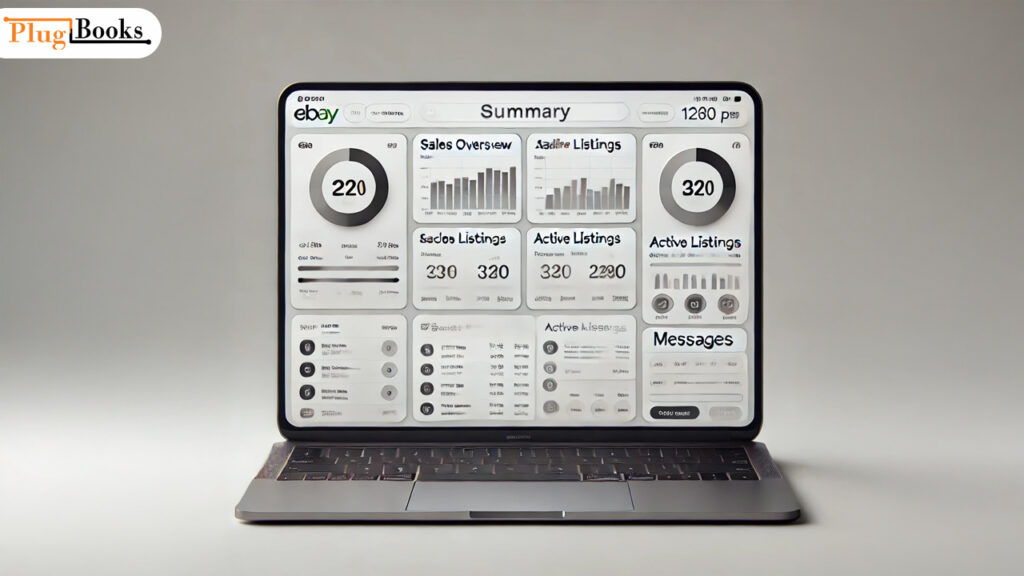
“My eBay Summary” is your go-to dashboard for all things eBay. Located in your eBay account, it provides an organized overview of your activity—think of it as your personal command center. From monitoring ongoing auctions to checking feedback, it’s a must-use tool for anyone who wants to save time and improve efficiency on eBay.
Why Did eBay Move Selling Activity to Seller Hub?
If you have noticed that your Selling Activity is no longer appearing in the traditional “My eBay Summary” page, you are not alone. eBay has recently migrated all professional selling tools, performance metrics, and inventory management features to the Seller Hub.
This update was implemented to provide a more streamlined, data-driven experience for sellers. While the “My eBay Summary” page remains your hub for personal buying history and watchlists, the Seller Hub is now the central command center for all business-related tasks.
How to Access the Seller Hub
If you are an active seller, you should make the switch to your new primary dashboard by following these steps:
- Log in to your eBay account.
- Navigate to the “My eBay” dropdown menu located in the top-right corner of the screen.
- Click on “Selling” or “Seller Hub.”
- Once the dashboard loads, you will have immediate access to your active listings, order processing, and real-time sales reports.
Why the Transition Matters
Moving your workflow to the Seller Hub offers several advantages for your online business:
- Advanced Analytics: Access detailed sales performance metrics that aren’t available in the basic summary view.
- Bulk Management: Easily handle multiple orders, relist items in bulk, and manage your inventory at scale.
- Centralized Operations: Keep all your business tools in one high-performance interface rather than clicking between multiple tabs.
Pro Tip for Efficient Management
While the Seller Hub optimizes your daily operations, it is still crucial to maintain accurate financial records for tax purposes. To simplify this, consider using Plugbooks. It integrates seamlessly with your eBay data, automatically syncing your Seller Hub transactions into your accounting software. This ensures that as your selling activity grows, your bookkeeping remains error-free and ready for tax season.
Key Features of My eBay Summary:
- Track Orders Effortlessly: Stay updated on purchases and sales in one convenient spot.
- Monitor Listings: Manage active, sold, or unsold listings with ease.
- Access Feedback and Messages: Keep your ratings strong by promptly responding to buyer or seller messages.
- View Sales Metrics: Analyze performance insights to grow your eBay business.
How to Access and Customize eBay Summary
Accessing My eBay Summary
- Log into your eBay account.
- Hover over “My eBay” in the top-right corner of the page.
- Click “Summary” from the dropdown menu.
Once inside, you’ll see a snapshot of your recent activity, including active listings, watchlists, and purchase history.
Customizing the Dashboard
Personalize your experience to focus on what matters most:
- Rearrange Sections: Drag and drop panels to prioritize information like sales metrics or shipping updates.
- Filter Options: Use filters to display specific data, such as items sold in the last 30 days.
Why eBay Summary is Essential for Sellers
If you’re running an eBay store or casually selling items, “My eBay Summary” can make a noticeable difference:
- Save Time: A centralized dashboard means fewer clicks and faster navigation.
- Boost Productivity: Quickly relist unsold items and respond to buyers efficiently.
- Improve Sales Performance: Use the insights to optimize pricing, shipping, and marketing strategies.
- Stay Organized: Never miss a sale or important buyer message.

Tips to Maximize Summary
- Set Alerts and Notifications: Enable email or app notifications for real-time updates on sales, offers, or messages.
- Leverage Watchlists: Add items to your watchlist to monitor competitor pricing or trends.
- Analyze Metrics Regularly: Review your sales reports and adjust your strategy based on buyer feedback.
- Update Listings Often: Refresh your inventory to stay ahead in search results.
Conclusion
Whether you’re a buyer looking to stay organized or a seller striving to scale your eBay store, My eBay Summary is the tool you need. With its intuitive features and customization options, it simplifies eBay activity, saves time, and boosts productivity.
Pro Tip: Managing your eBay activity gets even easier with Plugbooks. Not only does Plugbooks provide a comprehensive summary of your eBay transactions, but it also takes care of your bookkeeping needs. From tracking sales and expenses to syncing data with your accounting software, Plugbooks ensures your financial records are accurate and hassle-free—helping you focus on growing your business.

FAQs
1. How do I switch my default view to Seller Hub?
You can set Seller Hub as your default view by navigating to the “Selling” tab in your account menu, clicking “Account Settings,” and selecting “Seller Hub” under the “Manage communications” or “Dashboard” preferences to ensure it loads first every time you log in.
2. Can I track local pickup orders in My eBay Summary?
Yes, all local pickup transactions are visible in the “Sold” section of your dashboard. You can filter your orders by “Local Pickup” to see which items are pending collection and manage your QR code scans directly from the order details.
3. Does My eBay Summary show my total eBay seller fees?
My eBay Summary provides a quick snapshot of recent activity, but for a detailed breakdown of your total seller fees (including final value and listing fees), you should navigate to the “Payments” tab within Seller Hub for comprehensive financial statements.
4. How do I bulk relist unsold items using the dashboard?
To relist in bulk, go to the “Unsold” section in your Seller Hub, check the boxes next to the items you want to relist, and select the “Relist” button from the top toolbar to process them simultaneously.
5. Is the eBay Watchlist limited to a certain number of items?
Yes, you can add up to 300 items to your eBay Watchlist at one time. If you reach this limit, you must remove older items or use “Folders” in your dashboard to better organize and prioritize your tracked listings.
6. How can I clear my eBay search history from the summary page?
You can clear your recent search history by going to the “Recently Viewed” section in your summary, clicking “See All,” and selecting the “Remove” or “Clear All” option to reset your browsing data.
7. Can I access eBay promotional offers through my dashboard?
Yes, personalized promotional offers and eBay seller coupons are displayed in the “Messages” or “Notifications” panel of your dashboard, ensuring you never miss out on discounted listing fees or shipping credits.
8. Why are my tracking numbers not updating in the summary?
Tracking numbers typically sync within 24–48 hours after the carrier scans the package. If it has been longer, ensure your shipping label was generated through eBay; otherwise, you may need to manually add the tracking info via the “Add tracking” option in your order history.